
Select your Start+ 3D Pen #
Tap the image that matches your pen to view the correct Getting Started guide.
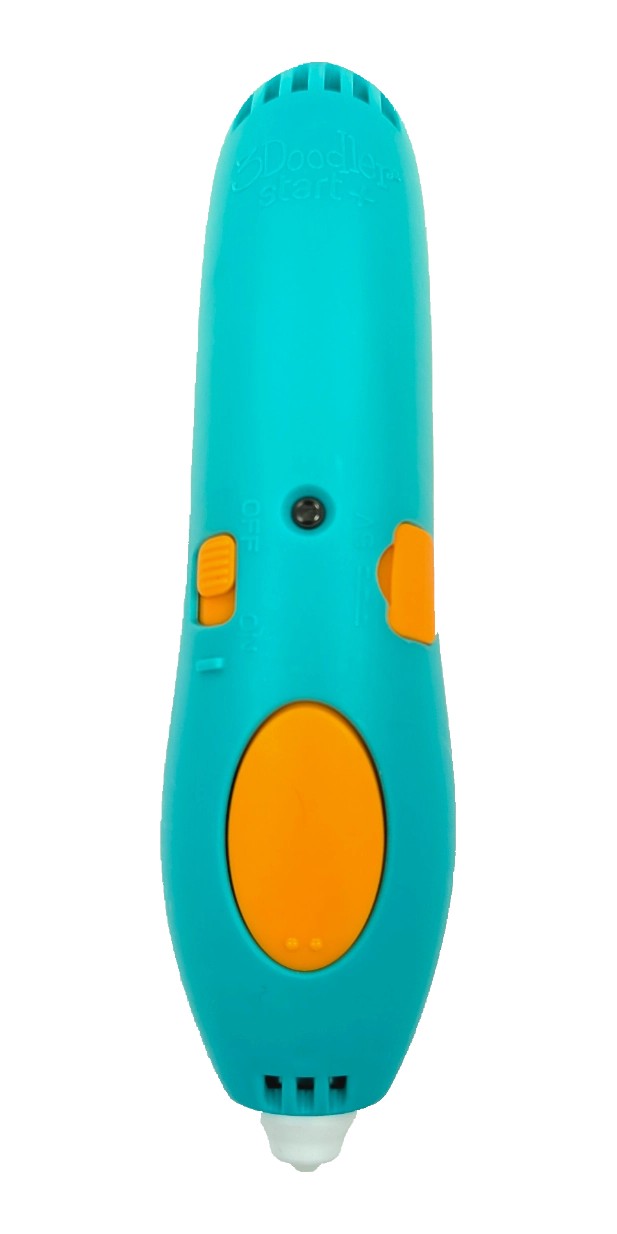 Charging port on the side
Start+ Troubleshooting Guide #
#
3Doodler Start+ Pen FAQs (Charging port on the side) #
Why isn’t my Start+ pen charging?
Ensure the pen is switched OFF while charging. During charging, the LED will flash orange. When the LED becomes solid orange, charging is complete. We see issues like this occasionally when the power supply is not providing enough amps to the pen. This can occur if the USB cord is plugged into a device instead of directly into the wall. Be sure to note that 3Doodler pens should not be used with Smart Chargers or Smart power supplies. Regular, low-watt chargers are recommended.How do I unclog/unjam my Start+ Pen?
Turn the pen on and let it warm up. Once it’s ready, insert a new strand into the pen, or use the strand already there, and while using firm pressure, push and twist the filament 90 degrees. Often, the firm pressure and twisting can dislodge any filament that might be stuck in the gears. If that does not unclog the jam, please contact Customer Service at help@wobbleworks.net
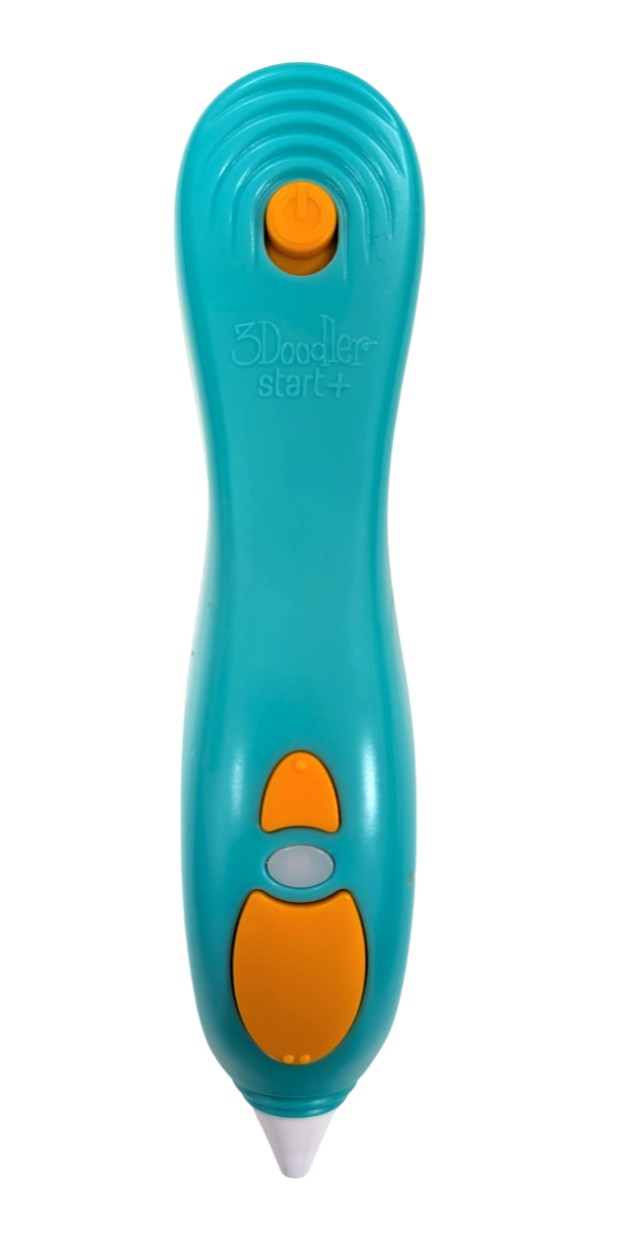 Charging port on the top
Start+ Troubleshooting Guide #
#
3Doodler Start+ Pen FAQs (Charging port on the top) #
Why isn’t my Start+ pen charging?
We see issues like this occasionally when the power supply is not providing enough amps to the pen. This can occur if the USB cord is plugged into a device instead of directly into the wall. Be sure to note that 3Doodler pens should not be used with Smart Chargers or Smart power supplies. Regular, low-watt chargers are recommended. This pen can be used plugged in or not plugged in. Refer to the LED chart at the bottom of the Troubleshooting Guide.How do I unclog/unjam my Start+ Pen?
With a small screwdriver, you can safely remove the gearbox cover. Turn the pen on and wait for it to warm up. Try reverse: In reverse, if any filament becomes visible, you can use tweezers to gently pull it out. Be sure to remove all the wispy ends so they do not get tangled in the gears. Try forward: While the pen is trying to extrude, insert a new strand into the gearbox and use force to push it through.
#
General Start+ Pen FAQs #
Why does my Start+ pen not seem to be heating up?
Begin by fully charging your 3Doodler Start+ for 30 minutes to 1 hour. Once charged, turn the pen on. The light should change from Solid Red to Solid Green. This typically takes about 30 seconds but may take up to two minutes. If the pen remains idle for too long, it may cool down as a safety feature and enter standby mode. If the LED has not turned Solid Green after three minutes, please email our Customer Service team.
Why is my Start+ Pen jammed/clogged?
Jams can occur occasionally and may have different causes. Most often, jams occur from reusing filament without trimming the ends. Here are some tips to help you avoid jams. Check your filament: Make sure it’s bendy and flexible. Filament that is brittle or breaks easily should be discarded. 15-second rule: Wait 15 seconds after extrusion stops before reversing out a strand. Trim those ends: Always trim off the melted end of filament before reinserting it into the pen. Doodle it out: If you can’t reverse a strand out, or you will be putting your doodler away for a bit, always extrude all remaining filament inside the pen.
Why is my 3Doodler Start+ having difficulty feeding or gripping a new strand?
Jams can occur occasionally and may have different causes. While your pen is feeding forward, firmly push the filament into the feeding port. If this does not resolve the issue, please reach out to us for further assistance.
The filament is moving slowly. What do I do?
Occasionally, when you get to the end of one strand, extrusion slows noticeably. Insert a new strand into the back of your 3Doodler pen. If it still extrudes very slowly (or not at all), try giving the new filament a little nudge downward. This should resolve the issue.
Why is the light on my 3Doodler Start+ always red?
A solid red LED indicates the pen is on and warming up. The LED will change to solid green or solid blue once it’s ready for use. After several minutes of being switched ON without engaging the motor, your pen will go into “standby mode.” The heat will cut off, and the LED will stay red until the device is made active again. Reactivate the device by single-clicking the button or by turning the pen OFF and then ON again. If your LED remains red after this, please contact our Customer Service team.
Why is the light on my 3Doodler Start+ blinking/flashing red?
If you are experiencing a flashing red light with your 3Doodler Start+, please contact our Customer Service team for assistance at help@wobbleworks.net.
What type of Filament can be used with the 3Doodler Start+ 3D pen?
The Start+ 3D pen is designed to work with our 3Doodler Start+ Eco-Filament. Our Start+ Eco-Filament was developed specifically for this pen so that you can doodle at lower, safe temperatures. The use of third-party filament will void any active warranty.